



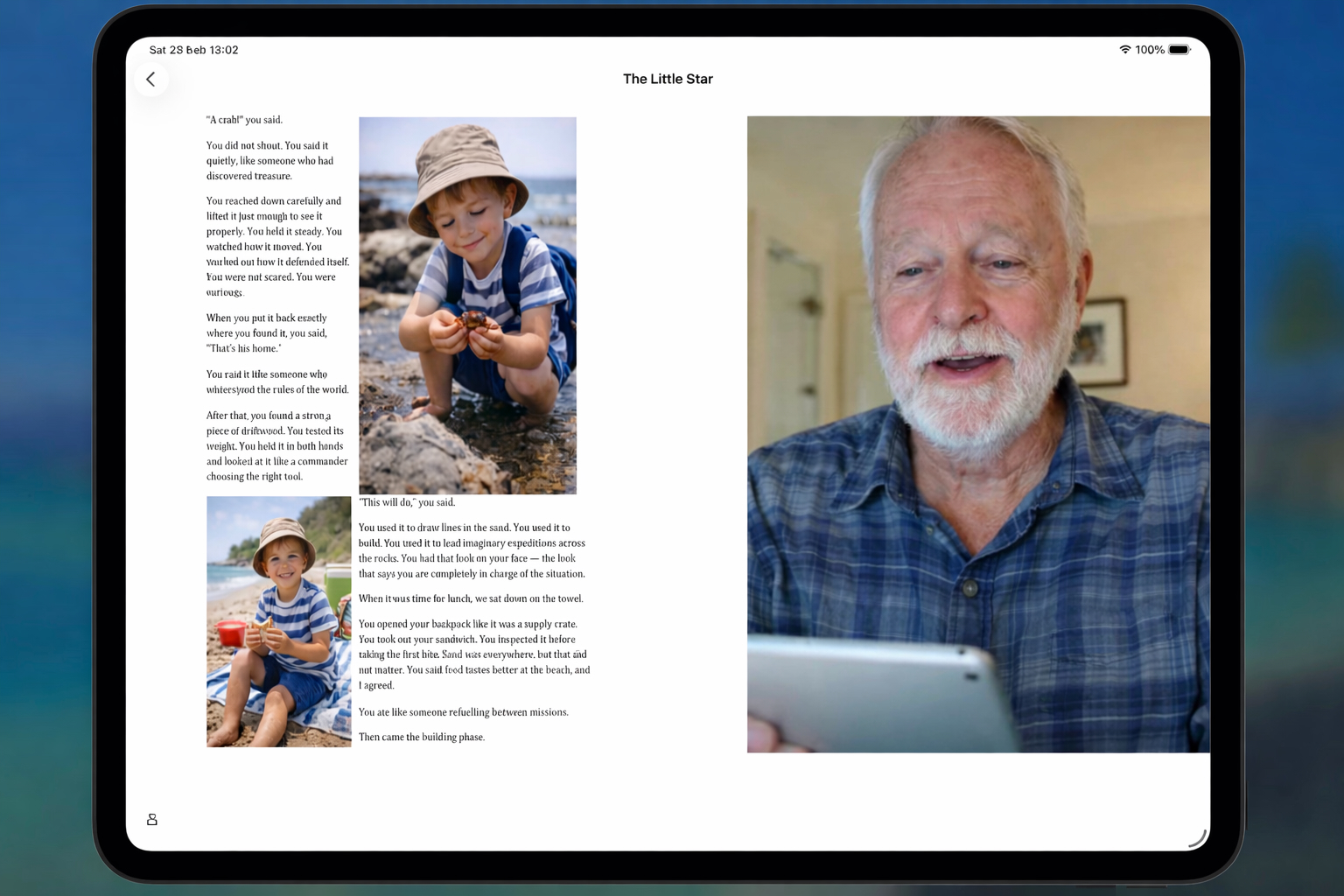
AlwinBridge™ presents each story in a clear and consistent layout.
When a story is open, the screen is divided into two areas:
- The page of the story
- The video reading associated with that page
This allows the child to see the written words and see the person reading them at the same time.
The structure remains the same for every story.
Expanding the page
If you double-tap the page, it expands to fill the screen.
This allows the child to focus entirely on reading.
When expanded, the page adjusts to the width of the iPad. If the text extends beyond the visible area, it can be scrolled so that the entire page remains readable.
Double-tapping again returns to the standard view.
Expanding the video
If you double-tap the video, it expands to fill the screen.
This allows the child to focus on the reader’s expression and presence.
Because iPads may be used in portrait or landscape orientation, the video adjusts to fit the screen shape. The image fills the display naturally.
Double-tapping again returns to the standard view beside the page.
Adapting to different devices
AlwinBridge™ adjusts automatically to different iPad screen sizes and orientations.
The page remains readable. The video remains visible.
The experience is designed to feel consistent whether the device is held vertically or horizontally.
A simple and flexible experience
The ability to expand either the page or the video allows the child to choose how they experience the story.
Some moments call for focusing on the words.
Other moments call for focusing on the reader.
AlwinBridge™ allows both, without complication.
Responsive Ads

[Twitter Widget Error] You need to authenticate your Twitter App first. Go to Highend Options > Social Links. Read the documentation to find out more.
Recent Comments